

Project configuration
From the project page in the Ozu dashboard, you can configure users and roles, set up your GitHub source, manage API tokens, deployment targets, and more.
Configuration page structure
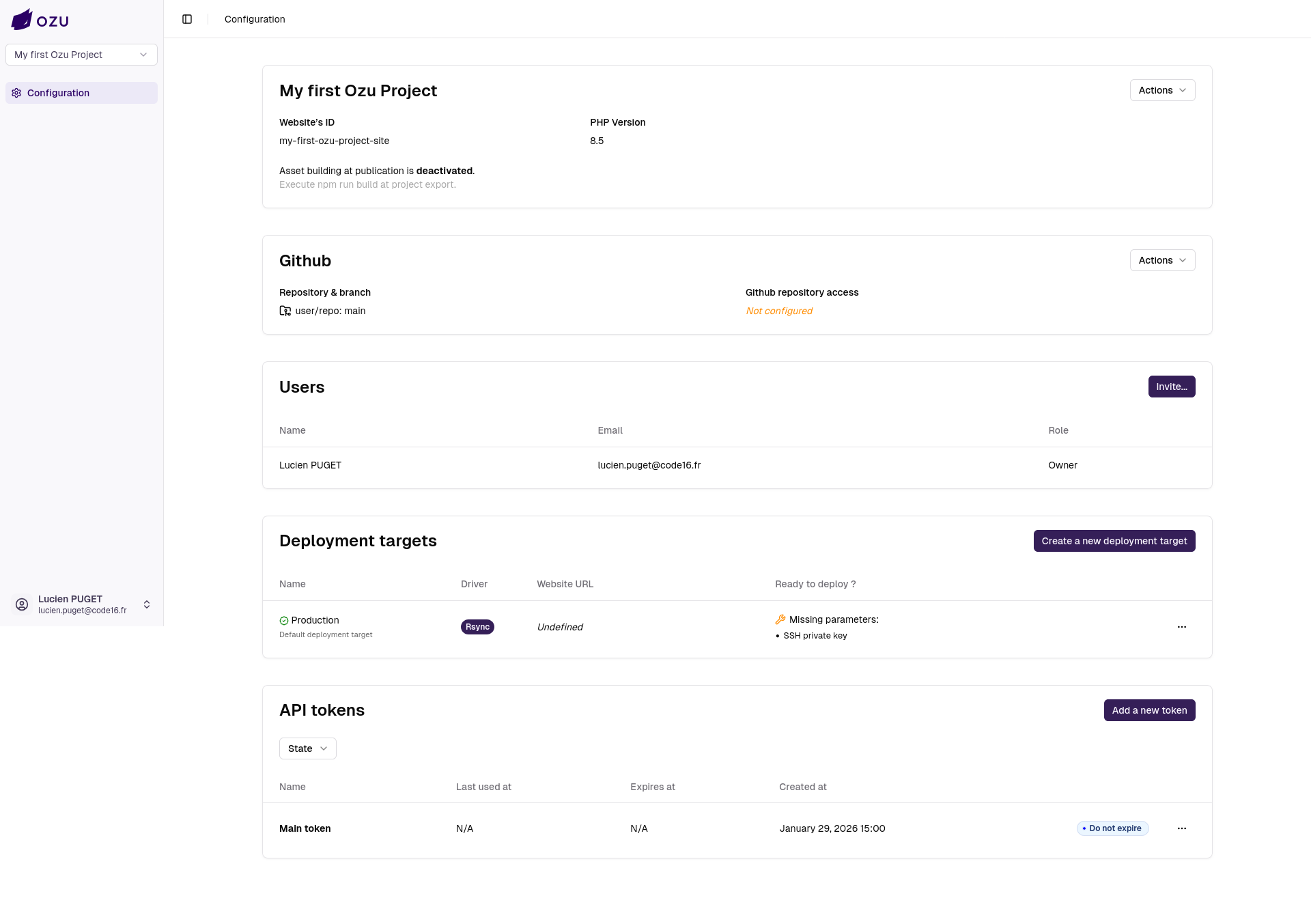
From top to bottom, you'll find the following sections:
- Project global information: such as your website's ID or "Key", the PHP version used by Ozu Builder Platform to deploy your project, and whether you want to build your assets at deployment (this option runs
npm run buildin the deployment workflow). - GitHub source configuration: where you can set the repository and branch to deploy from and allow Ozu access to that repository.
- Users and roles: where you can manage your project's users and invite new users to join your project.
- Deployment targets: where you can create and manage deployment targets for your project. You can also quickly see what is missing for a target to be ready for publication. By clicking on a target, you can access its show page where you will see more details, such as previous deployments and undeployed content awaiting publication, and trigger a new publication.
- API tokens: where you can create and manage API tokens for your project.
General configuration of your project

From this first section of the configuration page, you can set the PHP version used by Ozu Builder Platform to deploy your project. You can also toggle the "assets build at deployment" option and regenerate your API token.
INFO
Regenerating your API token will replace the "Main token" (which was provided during project setup). This will disallow access to anyone still using that token to interact with Ozu. If you want a new token without disabling the "Main" one, you can navigate to the "API tokens" section and create a new one, with or without an expiration date.
GitHub source configuration

In this section, you can set or edit the source repository of your project and the branch to deploy from.
The "Install / check GitHub app configuration" command will redirect you to the GitHub app installation page, where you can install the Ozu GitHub app on your repository and authorize Ozu to access it. This step is mandatory to deploy your project from GitHub.
Users and roles
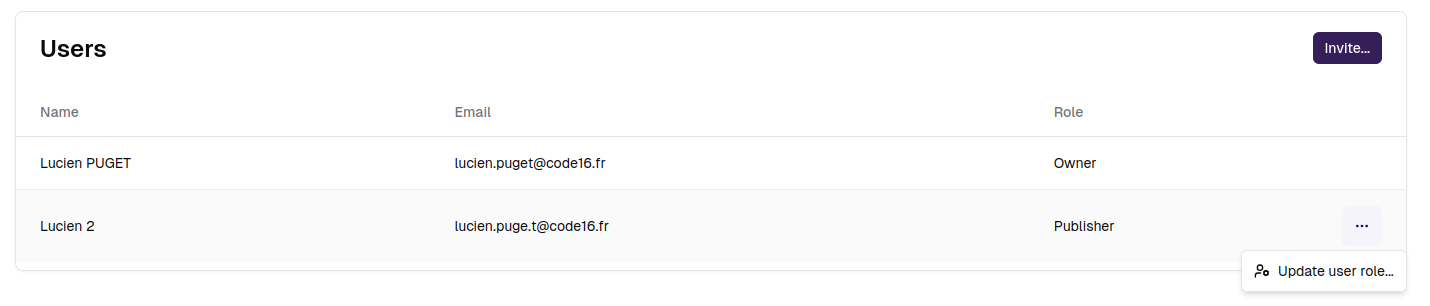 From the users and roles section, you can invite new users to join your project and edit their roles.
To invite a new user, click on the "Invite..." button, enter the email address of the user you want to invite, and select the role they'll be assigned. 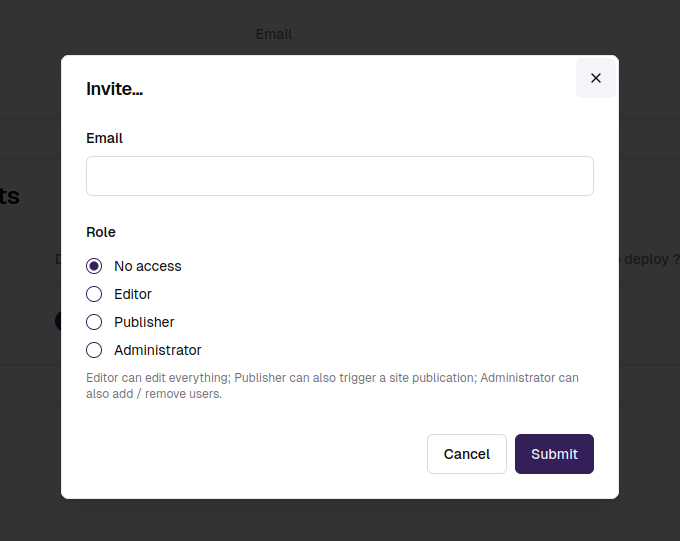
Deployment targets
The deployment targets section is quite important; this is where you can configure the targets where your project will be published.
The default deployment target (indicated by the green check mark) is the one that will be featured in the sidebar navigation under the "Publication" menu.
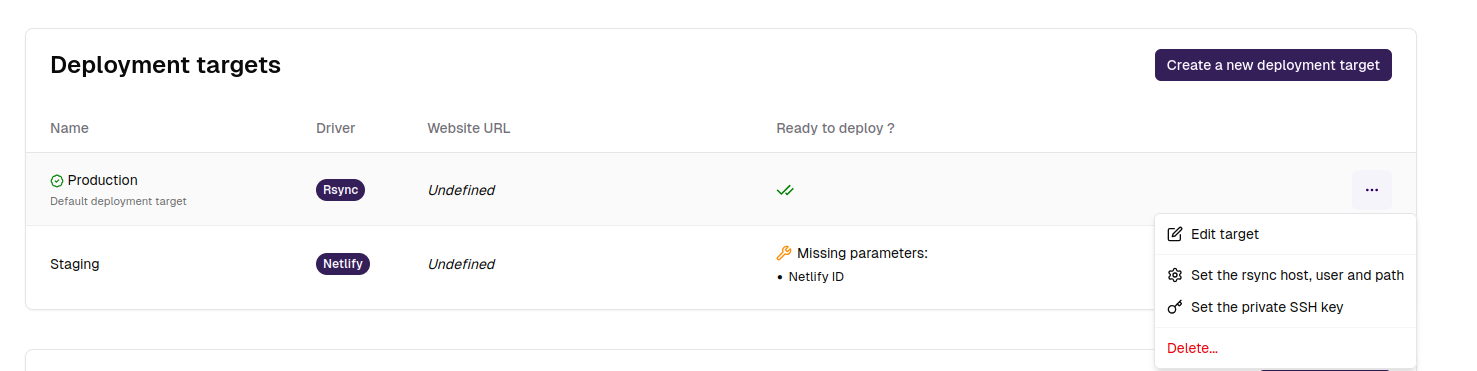
For a Rsync target, you have multiple commands to edit the target's configuration, set the host, username, and target path, or set the SSH private key.
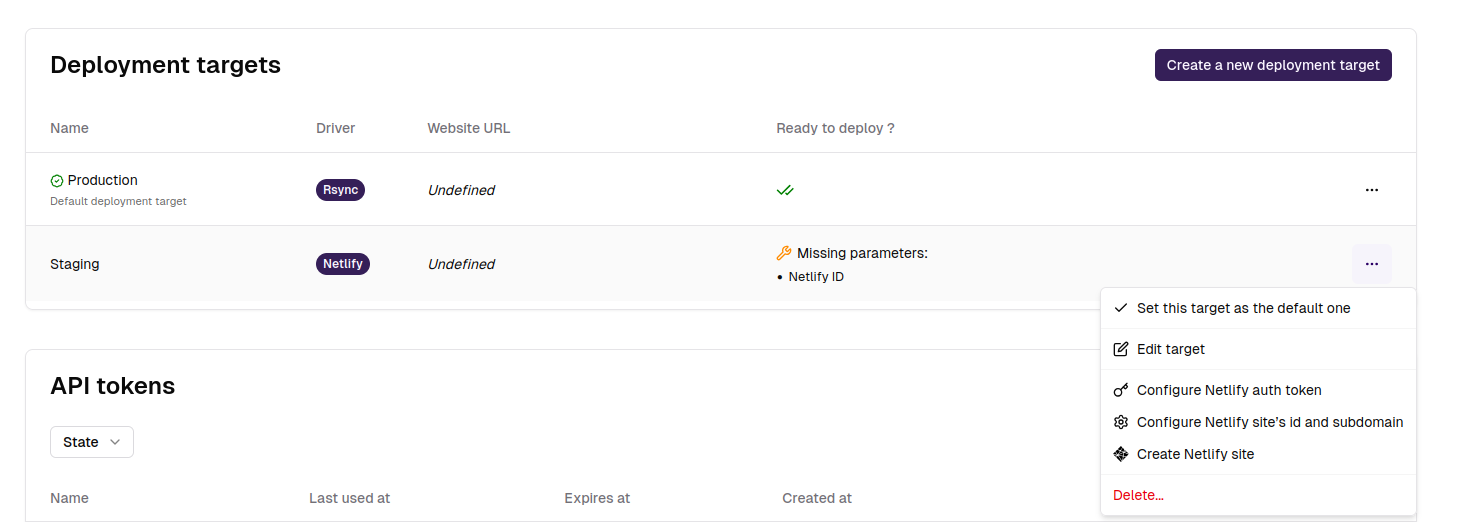
For a Netlify target, you have multiple commands to edit the target's configuration, set the site's ID, Netlify subdomain, and your auth token.
WARNING
The "Create a Netlify site" command will use your auth token to create a new site on your Netlify account and link it to Ozu. Usually, when creating a new Netlify deployment target from scratch, you will need to run this command after setting up your auth credentials.
Configure a deployment webhook
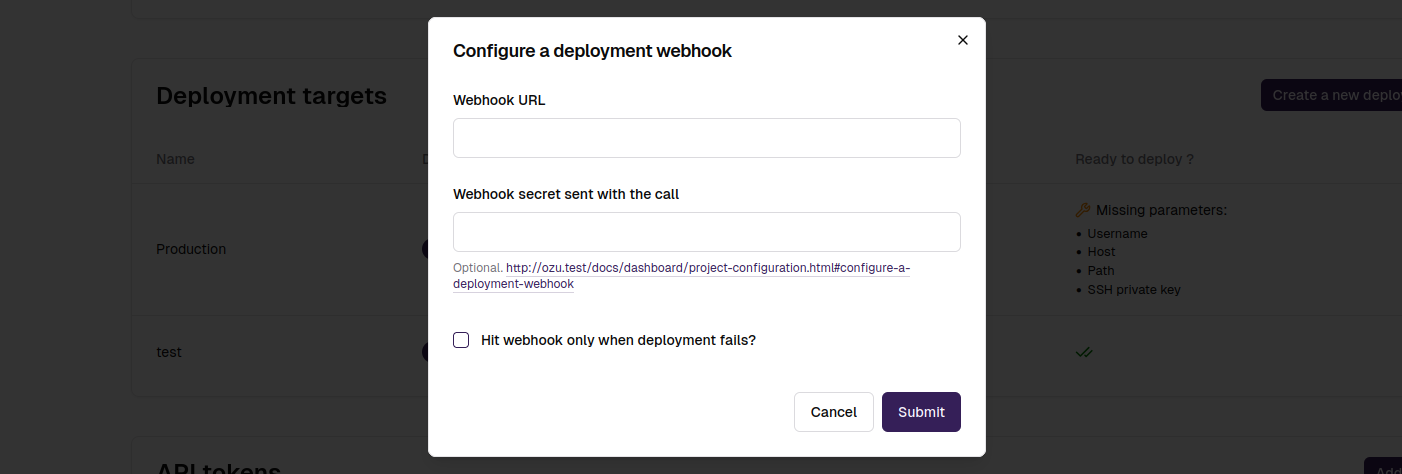
You can configure a deployment webhook that ozu will hit when a deployment is finished. You can restrict the webhook to be called only when a deployment fails (i.e: to fire a notification) and you can set a webhook secret that will be sent in the X-Ozu-Secret header so you can validate the call comes from Ozu.
Webhooks sent by Ozu are POST requests that have a json payload containing an identifier key (the deployment uuid), a status, and a duration key.
| Keys | Type | Values |
|---|---|---|
| identifier | string | Deployment uuid |
| status | string | success, failed |
| duration | int | In seconds |
API tokens
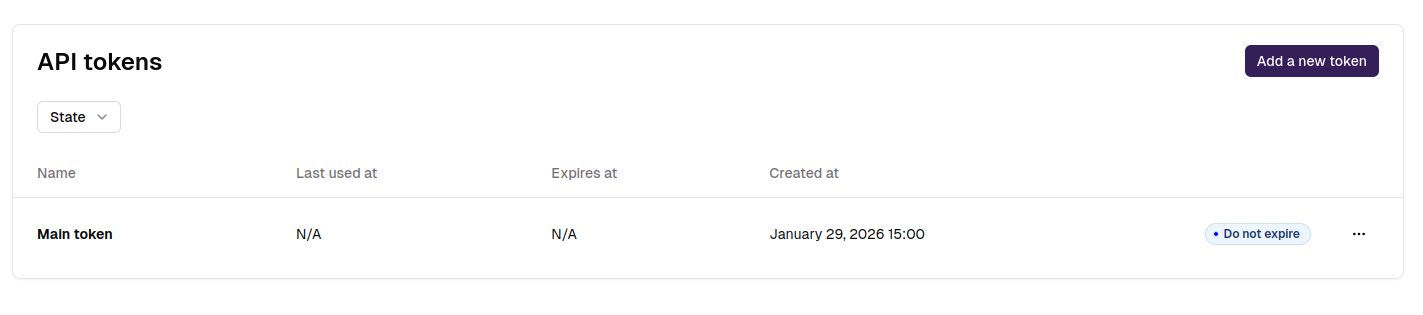
This is the section where you can create and manage API tokens for your project. When publishing your project, temporary API tokens will be created for the purpose of the deployment and will appear as clickable links to the deployment show page. You can revoke any of these tokens at any time, even the "Main" one, and create new temporary or never-expiring ones.
TIP
Tokens that can be generated from this section should be set as an environment variable (OZU_API_KEY) in your project.